Guides · Updated 29 Sep 2026
Date or Timeline column on monday.com: which to use for a due date
A Date column and a Timeline column both put dates on an item, and teams soon ask which one to use for a due date, how to get one from the other, and which formulas and automations work on each. This guide sticks to what monday.com's own help articles say, and marks what is our adaptation.
The short answer
Use a Date column for one due date (it can carry a time) and a Timeline column when an item has a start and an end. Both connect to a Status column in Deadline Mode, both accept date reminders through automations, and both can be the time column that dependencies read. To count across a timeline, monday.com's Formula Use Cases article gives WORKDAYS({Timeline#End},{Timeline#Start}). The articles we read describe no setting that links a Date column to a Timeline column. A Formula column can show a date worked out from the other column, but monday.com says a formula result cannot be written into another column, such as a Date column, without a workflow. The Duration column ties a number of days, not a date, to a timeline. We found no article describing an automation that copies a timeline's end date into a Date column, so check your own Automations page.
What each column holds
monday.com's Date column article opens with "Looking to add a due date to your items? Or to add a start date and start time to your tasks?" It holds one date per item, and the clock icon in the picker adds a time. The Timeline column holds a start date and an end date. Its cell is a battery-style bar that shows how much time has passed from the start date until today, and hovering over the top right of the picker shows how many days are selected and whether weekends are counted.
Which one to use
This split is our reading of the articles, not a monday.com rule:
- One moment, such as a due date: the Date column. With Deadline Mode on, the time you add there will "determine when a task is considered overdue".
- A span with a start and an end: the Timeline column, from which a Gantt view can be added directly (right-click a cell, then View in Gantt).
What the two columns share
Deadline Mode. The Deadline Mode article connects a Date or Timeline column to a Status column. A Timeline shows a bar that fills up toward the end date and turns to a check mark when the status is Done; the Date column article says a Date column in Deadline Mode shows whether the item was completed on time, overdue, or has days left. See Deadline Mode: what it does and where it stops.
Dependencies. According to the Dependencies article, they are available on the Pro and Enterprise plans and read either a Date or a Timeline column. They will only shift dates that already exist. The same article says weekends can be skipped on a Timeline column but not on Date columns when using dependency automation recipes.
Weekends. Hiding weekends is an account setting in Administration. A board-level option, "Enable weekend selection" under Customize Date column, is described for both column types.
Automations on each column
monday.com's pricing article says automations are only available on the Standard plan and up. (monday.com's set-number-of-days article is headed "Available on all plans"; the pricing article is the one that sets plan limits.) The date templates are under the Dates tab of the board Automations page, and the Alerts and Reminders article says the When setting can run exactly when the date arrives, on a recurring schedule, or after a date has passed, which runs at midnight and "will not work retroactively".
- Date column: Settings, then Add / edit date reminders, opens "When date arrives, notify someone." With Deadline Mode on, the menu offers Set Due Date Reminders instead: "When date arrives and status is something, notify someone".
- Timeline column: the same menu path opens "When timeline arrives, notify someone." The Timeline article does not say which of its two dates counts as arriving, so test one item. For the start date monday.com says: "You can not set reminders for the start date of a timeline column unless you're using custom automations."
- Overdue, every day:
Every day, if {due date} has passed and only if {status} is {something}, {notify} {someone}is a template that "cannot be built with the custom automation builder". - Writing a date: monday.com's set-number-of-days article stamps a helper Date column with the custom action "Set date to today"; a second automation, When date arrives, fires X days after.
See also the ways to get a reminder.
Formulas that read a date or a timeline
The Formula column is available on the Pro and Enterprise plans. In the Formula Use Cases article, "The #End and #Start suffixes reference the end and start dates within a Timeline column." Its examples:
WORKDAYS({Timeline#End},{Timeline#Start})for the working days in a timeline, Monday to Friday or Sunday to Thursday according to the account settingsROUND(DAYS({Due Date},TODAY()),0)for the days until the due date, or past itADD_DAYS({Start Date},15)to add days to a date, andFORMAT_DATE(ADD_DAYS({Start Date},15))for a cleaner display
The function list adds WORKDAY({Date column}, 20), which adds working days. Two combinations are our adaptation and are not printed by monday.com: ROUND(DAYS({Timeline#End},TODAY()),0) for the days left in a timeline, and FORMAT_DATE(ADD_DAYS({Timeline#End},7)) for a date a week after it ends. Check them on one item first; see also the WORKDAYS formula.
Getting a due date from a timeline
These are the routes the articles document:
- The Duration column (a number of days, not a date). The Timeline + Numeric Combo ties a Numbers column to a Timeline. Type a number and an empty Timeline fills in "with the starting date as today's date"; on a Timeline that already has dates, the end date moves. With Hide Weekends on, the timeline is pushed by workdays only. To connect an existing Timeline, the article names Settings, then "Connect with a duration"; Formula Use Cases names the same idea from the Numbers column, "Connect to a Timeline column", so look in both menus.
- A formula. ADD_DAYS and WORKDAY turn one date into another. On a timeline, use #End as above.
Formula Use Cases adds: "Formula results cannot be written into other columns (for example, a Date column)." Its workaround is a workflow that copies the result into another column.
The articles we read do not describe an automation that copies a timeline's end date into a Date column. Look under the Dates tab and in the custom builder on your own account. A formula column is read-only and, per Formula Use Cases, cannot act as a trigger; its workaround copies the result into a regular Numbers or Text column with a workflow. Our suggestion, not monday.com's: for a due date that an automation must watch, make one column the source and let the other display it.
Where Stale & SLA fits
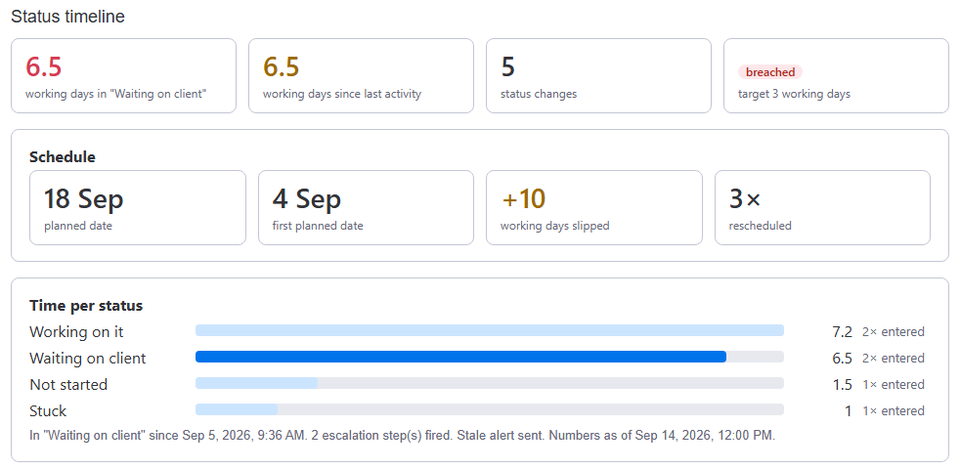
A Date or Timeline column holds today's plan only; monday.com's Gantt Baseline, on Pro and Enterprise, can save a snapshot of it from the Gantt view. In Stale & SLA's board settings, pick the column in the Schedule slippage card ("Track a date or timeline column"); a timeline is listed as "(timeline, end date)" because the app follows its end date. The app reads the column's history from the board's activity log and writes two numbers on each item: Days slipped (today's planned date against the earliest one the board's activity log shows) and Times rescheduled. The trigger When an item's planned date slips N days or more can feed monday.com's notify actions. See overdue items and days slipped.
Frequently asked
- Should I use a Date or a Timeline column for a due date?
- monday.com's Date column article introduces it for a due date, or a start date and start time. A Timeline column holds a start and an end. Deadline Mode, date reminders and dependencies work with either.
- How do I get a due date from a timeline?
- The articles we read describe no direct link. A Formula column can display the timeline's end date, or a date worked out from it, with the #End suffix. monday.com says a formula result cannot be written into another column, such as a Date column, on its own, and suggests copying it with a workflow. The Duration column ties a number of days to a timeline, not a date, so check your own Automations page for a copy step.
- Which formula counts the working days in a timeline?
- monday.com's Formula Use Cases article gives WORKDAYS({Timeline#End},{Timeline#Start}). The #End and #Start suffixes reference the end and start dates within a Timeline column, and working days follow the account settings.
- Can I set a reminder for the start date of a Timeline column?
- monday.com says reminders for the start date of a timeline column need a custom automation. The column menu template reads 'When timeline arrives, notify someone.'
- Can a formula column trigger an automation?
- No. monday.com says a formula column is read-only and cannot act as a trigger. Its workaround copies the result into a regular Numbers or Text column, which the automation then watches.
Stale & SLA adds time in status, stale alerts, SLA targets and escalations to any monday.com board. Set-up is one status column and a Save on each board.
Stale & SLA is in review for the monday.com Marketplace. Until monday.com approves the listing, the install screen says the app has not been reviewed yet. How it handles your data.