Guides · Updated 29 Sep 2026
The ways to get a reminder on monday.com
monday.com sends reminders in several different ways, and they are scattered across the column menu, the automations page and the updates. Which one you need depends on what you want to be reminded of: a date, a repeat, a status that has not changed, or something someone wrote.
The short answer
Yes, monday.com sends reminders, and most of them are automations, which its pricing article says need the Standard plan or above. For a date, open the date column's menu, choose Settings, then Add / edit date reminders, and pick when and whom to notify. To keep reminding until an item is done, use the template Every day, if {due date} has passed and only if {status} is {something}, {notify} {someone}. For a reminder on an update, use the bell icon on the update. Date automations watch a date; a Stale & SLA trigger covers an item that has gone quiet or is close to its status target.
Dates: before, on and after
Date reminders are automations. In monday.com's Alerts and Reminders article, the templates are under the Dates tab of the board's Automations page, and the When setting can run exactly when the date arrives, on a recurring schedule, or when a date has passed. That last option runs at midnight after the date and, in the article's words, "the template will not work retroactively", so items already late when you build it are not flagged.
The quicker route is the column menu. On a Date column, the three dots, Settings, then Add / edit date reminders open the template When date arrives, notify someone with the column filled in. The Date Column article says the notification can go at an hour on the day, or a number of days before it. If the column is linked to a status in Deadline Mode, the menu offers Set Due Date Reminders instead, which opens When date arrives and status is something, notify someone; see the Deadline Mode guide. A reminder for the start date of a Timeline column needs a custom automation.
Keep reminding until it is done
The Alerts and Reminders article has a template for this: Every day, if {due date} has passed and only if {status} is {something}, {notify} {someone}. Set the status to a "Not done" label and the reminder repeats each day until the status changes. The article says this template cannot be built with the custom automation builder, so start from the template list. Because the plain "date has passed" template is not retroactive, try the daily one on an item that is already late before you rely on it. More on late work: overdue items.
Recurring and birthday reminders
monday.com's recurring tasks article shows a notify automation on a schedule: the whole sales team every Monday at 9am with the message "Reminder to restock shelves!". Time-based automations run in the timezone of the person who sets them up, so a 9am reminder set in New York reaches Los Angeles at 6am. For birthdays, the Alerts and Reminders article gives When {Birthday Date} arrives, {notify} {someone} and push {Birthday Date} by {12 months}, with the column set to each person's next birthday, so it fires again a year later. A recurring item is a different tool: a schedule that creates a new item each time, not one that updates an old one.
A set number of days after something happens
Automations cannot trigger directly from the Creation Log or Activity Log. monday.com's workaround uses a helper Date column: one automation sets it to today when an item is created or a status changes, and a second, When date arrives set to X days after, sends the notification.
Reminders that are not about a date
To be reminded about an update, click the bell icon on it and choose a preset time; the alert reminders article says it appears in the notification center and by email if your email notifications are on. The alert reminders article describes that bell on updates; for a date, use the date reminders above. For alerts outside monday.com, the same article points to the calendar integration, where you set the reminders in your own calendar app.
Bell, email and chat
According to the notifications article, automations can customize bell and email notifications, and Slack and Microsoft Teams notifications are set up from the bell. Which notification types reach your inbox is a per-person setting: profile, Notifications tab. If a reminder shows in the bell but never by email, check that tab first.
Limits
- Plan and quota. Automations start at Standard, with 250 actions a month, then 25,000 on Pro, per the pricing article. Notifying board subscribers uses one action for each person notified on every run, so six subscribers cost six, and actions an app's automations use count toward the same limit, per the actions and limits article. The automation actions calculator adds it up.
- Notify text. No HTML, and the columns Formula, Auto Number, Progress, Dependency and Link to Item are not supported in the notify field. A date there is sent in European format.
- Subitems. The recipient must be a People column on the subitem.
When the thing to watch is not a date
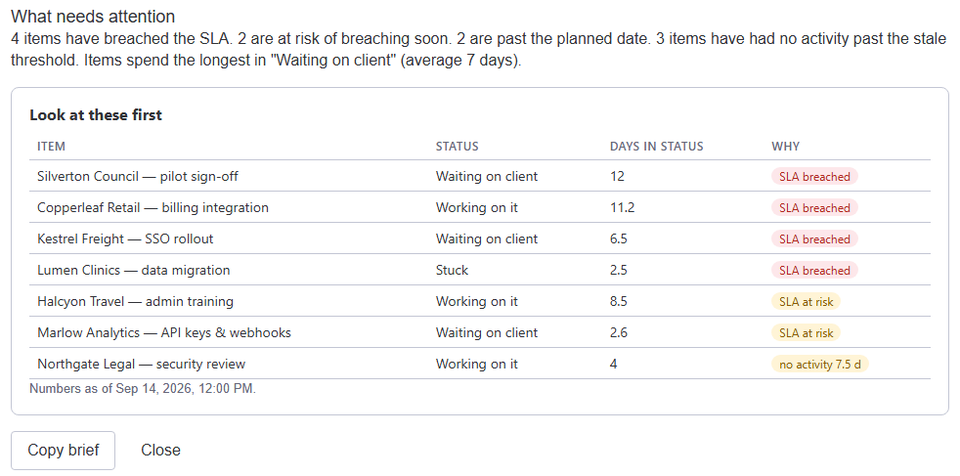
These templates watch a date. Three other reminders depend on time in a status or on silence, and Stale & SLA covers those on any board with a status column:
- An item that went quiet: the trigger When an item has had no activity for N days fires once per quiet stretch, in the statuses you choose, and re-arms when someone touches the item. See stale items.
- An item close to its target: set days per status; the item is at risk at 80% of the target and breached once it passes, in working days with the holidays you list when business hours are on.
- A step after that: an escalation step after N days notifies everyone in a People column you choose and posts an update on the item.
Connect a trigger to monday.com's own notify action, which counts toward your automation actions like any other. An admin can also switch on the weekly digest, one monday.com notification a week with the counts and the top items. The app checks each board at least once a day, not at a time you pick, so for "9am on the due date" use the date automations above.
Frequently asked
- Does monday.com send reminders?
- Yes. Reminders come from automations on a date, a schedule or a status, from the bell on an update, and from a synced calendar. monday.com's pricing article says automations are available on the Standard plan and up.
- How do I get a reminder before a due date?
- On the date column, open the three-dot menu, choose Settings, then Add / edit date reminders. It opens the template 'When date arrives, notify someone'; choose when it runs, including a number of days before, and who to notify.
- How do I remind someone every day until an item is done?
- Use the template 'Every day, if {due date} has passed and only if {status} is {something}, {notify} {someone}' from monday.com's Alerts and Reminders article, with the status set to a not-done label. It repeats each day until the status changes.
- Can I set a recurring or birthday reminder?
- Yes. monday.com's articles show a notify automation on a weekly schedule, and for birthdays the template 'When {Birthday Date} arrives, {notify} {someone} and push {Birthday Date} by {12 months}'.
- Can I be reminded when an item has had no activity?
- A date automation does not watch activity. Stale & SLA's trigger 'When an item has had no activity for N days' fires once per quiet stretch and can feed a monday.com notify action.
Stale & SLA adds time in status, stale alerts, SLA targets and escalations to any monday.com board. Set-up is one status column and a Save on each board.
Stale & SLA is in review for the monday.com Marketplace. Until monday.com approves the listing, the install screen says the app has not been reviewed yet. How it handles your data.