Guides · Updated 28 Sep 2026
monday.com deadline mode: what it does and where it stops
Deadline Mode links a Date or Timeline column to a Status column, so the column itself shows a due date closing in and a checkmark once the item is Done. The question a team runs into next is what happens around that date, and what one date cannot measure at all.
The short answer
Deadline Mode connects a Date or Timeline column to a Status column, and optionally a People column. A Timeline column then shows a bar filling toward its end date; a Date column shows the days left, on time or overdue. Turn it on from the column's menu: Settings, then Set as a Deadline. Reminders before and after the date come from automations, on plans that include them (Standard and up). What it does not hold is a target for how long an item may sit in each status: it follows one end date, Done or not Done.
How Deadline Mode works
In monday.com's own article, Deadline Mode "works by connecting together a Date or Timeline Column together with a Status Column on your board". To turn it on, the board needs a Date or Timeline column and at least one Status column (a People column is optional); open the date column's menu, choose Settings, then Set as a Deadline, and connect the columns.
Which status counts as finished is set separately: in the Status column's menu, under Customize Status column, you pick the label colors that count as "Done". For a Timeline column, the same article describes "a set of bars with the start and end date, with the bar filling up like a thermometer as you approach the end date," turning into a checkmark and solid green once the status is Done. For a Date column, the Date column article says deadline mode shows whether the item was completed on time, is overdue, or has days left. Adding a time to a Date column (the clock icon in its calendar picker) sets exactly when the item counts as overdue.
Reminders come from automations
On a deadline column, Set Due Date Reminders opens the automation When date arrives and status is something, notify someone, and you choose when it runs, so a reminder can go out before the date. For items past it, monday.com's Alerts and Reminders article suggests Every day, if the due date has passed and only if the status is something, notify someone, which keeps reminding until the status changes. A plain when a date has passed automation, by contrast, does not work retroactively. Every run counts toward the account's monthly automation actions; the automation actions calculator shows how far the quota goes.
Working days
monday.com's account settings shape the dates themselves: the weekend can be Friday-Saturday or Saturday-Sunday, Hide Weekends lets a Timeline column pick only work-week dates, and Workload work schedules hold days off and holidays for the Workload view. The Deadline Mode article does not describe the bar or the overdue mark counting working hours or holidays. On monday service boards, the SLA column counts only the hours you define and pauses outside them and on non-working days.
Where one date stops
- One date, not a target per status. The bar and the checkmark follow one end date against Done or not Done. Nothing in the article sets how long an item may sit in one status, such as two days in Review.
- Today's plan only. When the date moves, the column shows the new date; the column itself keeps no history of earlier dates.
How Stale & SLA complements it
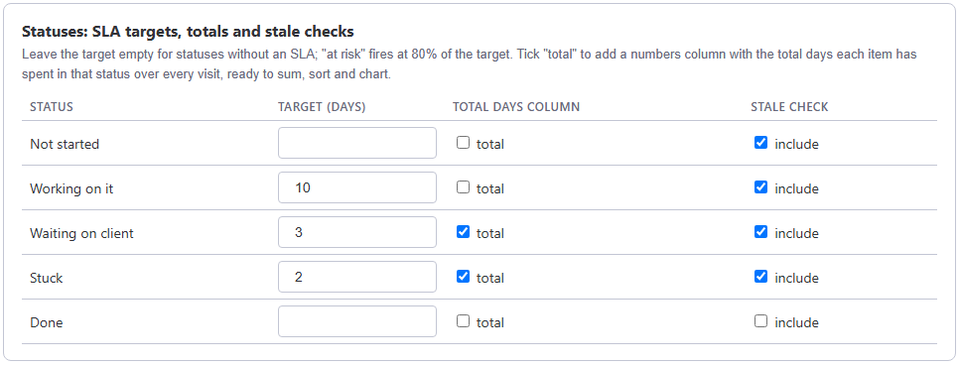
Stale & SLA does not replace the Date or Timeline column Deadline Mode uses; it adds what one date cannot hold, on any board. A target in days for each status, with the item at risk at 80% of the target by default and breached once it passes: see SLA tracking on monday.com. With the board's business hours on, those targets and every number the app writes count only working time in the board's own calendar, holidays included. Escalation steps in the board's settings fire after a set number of days in a status, each notifying everyone in a chosen People column and posting an update on the item. And overdue items and days slipped keeps the item's first planned date and how many times it was rescheduled.
Frequently asked
- How do I get a reminder before the due date?
- On a deadline column, Set Due Date Reminders opens the automation 'When date arrives and status is something, notify someone', and you choose when it runs.
- Can monday.com flag overdue items every day?
- Yes. monday.com's Alerts and Reminders article suggests the template 'Every day, if {due date} has passed and only if {status} is {something}, notify {someone}', which repeats until the status changes.
- Can I use Deadline Mode and Stale & SLA on the same board?
- Yes. Stale & SLA reads the Status column for time in status and SLA targets, and the Date or Timeline column for Days slipped.
Stale & SLA adds time in status, stale alerts, SLA targets and escalations to any monday.com board. Set-up takes about two minutes per board.
Stale & SLA is in review for the monday.com Marketplace. Until monday.com approves the listing, the install screen says the app has not been reviewed yet. How it handles your data.