Guides · Updated 27 Sep 2026
How to track approval turnaround time on monday.com
An approval sits in a status such as Pending approval until someone acts on it. Approval turnaround time is how long it waits there. The question that matters is not whether it was approved, but how long it sat, and who should be told before it sits too long.
The short answer
Put the approval on a Status column and let a status change automation notify the approver the moment it lands there. To track the turnaround itself, measure the days each item spends in the approval status and set a target on that status. monday.com's help center shows how to stamp a date when the status changes and act a set number of days later, and a new submission re-stamps it. But each reminder or step is a separate automation, the setup in that article keeps no running count of days waited, and it does not describe counting only working days.
What monday.com covers
A Status column carries the approval's labels: Pending approval, Approved, Rejected. monday.com's Status Column article allows up to 40 labels, lets you mark a subset as "done", and adds a column summary so the board shows where approvals stand at a glance.
A status change automation can notify the approver the moment an item reaches Pending approval. monday.com's status change automations article lists the template "When status changes to something, notify someone". For a due-date reminder instead, monday.com's automations article notes that a "when a date has passed" trigger runs at midnight after the date and "will not work retroactively". Its template "Every day, if {due date} has passed and only if {status} is {something}, {notify} {someone}" repeats the reminder every day until the status changes. The date-passed automations need a due date on each item; the helper-date setup in Trigger an automation after a set number of days stamps one for you when the status changes. None of them writes how many days an approval has already waited onto the board.
What the built-in pieces leave to you
- How long an approval has waited, not only whether a due date has passed.
- A warning before the wait counts as late, without adding an automation for every threshold.
- Escalation in steps, the approver first and their manager later, kept in one place instead of one automation per step.
- One list of every approval waiting too long, worst first.
How Stale & SLA does it
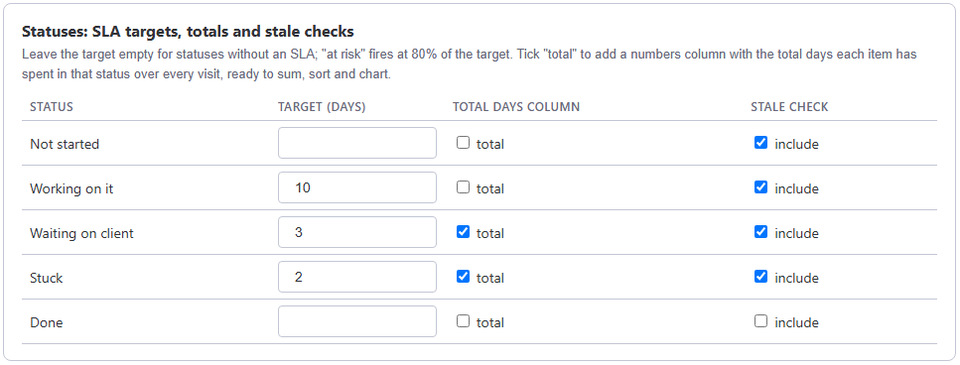
In the board's Stale & SLA settings, set an SLA target in days on the approval status, for example Pending approval. With business hours on, the target counts working days of the board's calendar, so a Friday-evening request is not late by Monday morning. Each approval turns at risk once 80% of its target is used and breached once it passes.
Two automation triggers, When an item is at risk of missing its SLA and When an item breaches its SLA, connect to monday.com's own notify actions. The escalation ladder adds further steps after more days, for example notifying the approver's manager through a people column, and restarts if the approval is sent back and resubmitted. Days in current status, and a Total days column once you tick total for the approval status, show how long the current wait has run and how much time the approval has used up across every time it entered that status. A stale threshold catches approvals nobody has touched at all, whether or not they are still inside their SLA target.
Frequently asked
- What if an approval is rejected and comes back for another round?
- With total ticked for the approval status, each visit is added to its Total days column, and Days in current status starts again from the new visit, so a second round shows up as its own wait.
- Can a different approver be notified than the one who gets escalated to?
- Yes. Each step of the escalation ladder names its own people column, so the first step can notify the approver's column and a later step a different one, such as a Manager column you add to the board.
- Does this need a separate approvals board?
- No. It works on the status column of any monday.com board, including one where approval is just one stage among others.
Stale & SLA adds time in status, stale alerts, SLA targets and escalations to any monday.com board. Set-up is one status column and a Save on each board.
Stale & SLA is in review for the monday.com Marketplace. Until monday.com approves the listing, the install screen says the app has not been reviewed yet. How it handles your data.